







PHP continues to power a significant portion of the web, making it one of the most widely used programming languages for building dynamic websites and web applications. Popular platforms like WordPress, Laravel, Drupal, and many custom business applications rely on PHP to process server-side code and deliver interactive experiences.
If you’re planning to learn PHP or develop modern web applications, the first step is installing PHP correctly on your computer. Fortunately, the setup process is straightforward whether you’re using Windows, macOS, or Linux.
In this guide, you’ll learn how to install PHP, verify your installation, configure your development environment, and confirm everything is working correctly before writing your first PHP script.
What Is PHP?
PHP (Hypertext Preprocessor) is an open-source server-side scripting language used to build dynamic websites and web applications.
Unlike HTML, which displays static content, PHP processes data on the server before sending the final webpage to a visitor’s browser.
Developers use PHP for:
- Dynamic websites
- Content management systems
- E-commerce platforms
- REST APIs
- Customer portals
- Web applications
PHP System Requirements
Before installing PHP, make sure your computer has:
- Administrator privileges
- Stable internet connection
- A modern web browser
- At least 2 GB RAM (4 GB recommended)
- A code editor like Visual Studio Code
Installing PHP on Windows
Windows users have several installation options. The easiest method is downloading PHP directly or using an all-in-one development package such as XAMPP or Laragon.
Step 1: Download PHP
Visit the official PHP website and download the latest Thread Safe version for Windows.
Extract the ZIP archive into a folder such as:
C:\phpStep 2: Configure Environment Variables
To use PHP from Command Prompt:
- Open Environment Variables.
- Edit the Path variable.
- Add:
C:\phpSave the changes.
Step 3: Verify Installation
Open Command Prompt.
Run:
php -vIf everything was installed correctly, you’ll see the installed PHP version.
Installing PHP on macOS
The easiest method on macOS is using Homebrew.
Install Homebrew
If Homebrew isn’t installed, install it first using the command from the Homebrew website.
Install PHP
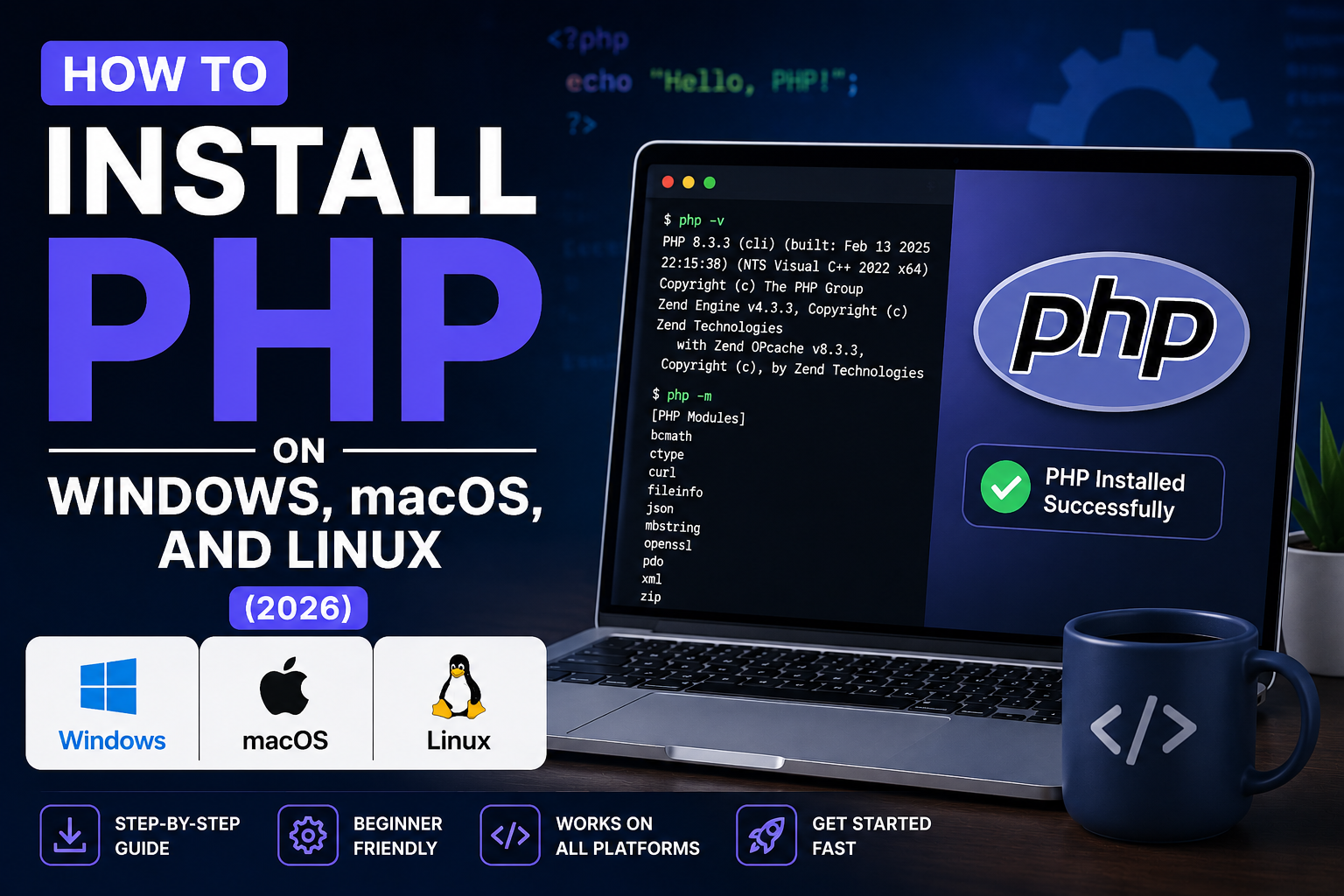
Run:
brew install phpHomebrew automatically downloads and installs the latest stable PHP release.
Verify
Run:
php -vYou should see the current version displayed.
Installing PHP on Linux
Most Linux distributions include PHP in their package repositories.
Ubuntu and Debian users can install PHP using:
sudo apt update
sudo apt install php php-cli
For Fedora:
sudo dnf install phpFor Arch Linux:
sudo pacman -S phpVerify Installation
Run:
php -vThe installed version should appear.
Installing Common PHP Extensions
Many applications require additional extensions.
Common extensions include:
- BCMath
- Curl
- Fileinfo
- GD
- Mbstring
- MySQL
- OpenSSL
- PDO
- XML
- ZIP
Linux example:
sudo apt install php-mbstring php-xml php-curl php-zip php-mysqlCreate Your First PHP File
Create a folder named:
php-testInside it, create:
index.phpAdd:
<?php

echo "Hello, World!";
Save the file.
Run PHP from the Terminal
Navigate into your project:
cd php-testExecute:
php index.phpOutput:
Hello, World!Congratulations—your PHP installation is working.
Start PHP’s Built-In Server
PHP includes a lightweight development server.
Run:
php -S localhost:8000Open your browser:
http://localhost:8000You’ll see your PHP page running locally.
Install Visual Studio Code
Although any editor works, Visual Studio Code is one of the most popular choices.
Useful extensions include:
- PHP Intelephense
- PHP Debug
- Prettier
- GitLens
These extensions improve code completion, debugging, and formatting.
Check PHP Configuration
Display your configuration:
php --iniThis shows:
- Loaded configuration file
- Additional configuration files
- Extension directories
Useful PHP Commands
Check version:
php -vCheck installed modules:
php -mShow configuration:
php --iniShow detailed information:
php -iCommon Installation Problems
PHP Not Recognized
If the terminal cannot find PHP, verify that PHP has been added to your system PATH.
Missing Extensions
Applications like Laravel may report missing PHP extensions.
Install the required extension, then restart your terminal or web server.
Permission Errors
Linux users may occasionally encounter permission issues.
Use:
sudo chmod -R 755 project-folderOnly adjust permissions when necessary and understand the implications before changing them.
Why Developers Choose PHP
PHP remains one of the most popular web development languages because it offers:
- Open-source licensing
- Large developer community
- Excellent documentation
- Cross-platform compatibility
- Strong performance
- Broad hosting support
- Integration with popular databases
It also powers major platforms including WordPress, Laravel, Magento, and many enterprise applications.
Frequently Asked Questions
Is PHP free?
Yes. PHP is completely free and open source.
Can PHP run on Windows?
Yes. PHP supports Windows, macOS, and Linux.
Do I need Apache or Nginx?
Not for learning. PHP includes a built-in development server suitable for local testing.
Which PHP version should I install?
Install the latest stable version recommended by the framework or application you plan to use.
Is PHP still worth learning in 2026?
Absolutely. PHP remains widely used for web development and continues to receive regular updates, performance improvements, and security enhancements.
Conclusion
Installing PHP is one of the first steps toward becoming a web developer. Whether you’re using Windows, macOS, or Linux, the process is simple: install PHP, verify the installation, create a test script, and launch the built-in development server.
Once PHP is running, you’ll be ready to explore more advanced topics such as Composer, MySQL integration, object-oriented programming, and frameworks like Laravel. Building a solid PHP foundation today will make it much easier to develop secure, scalable web applications in the future.