








If you need to move WordPress site to new host, doing it the wrong way can lead to downtime, broken pages, lost data, and even a drop in search engine rankings. The good news is that with the right preparation and migration process, you can transfer your website smoothly while keeping it accessible to visitors throughout the move. Whether you’re switching to a faster hosting provider, improving website performance, or looking for better features, this guide explains how to move WordPress site to new host safely in 2026. You’ll learn the essential steps to migrate your files, database, DNS settings, and SSL certificate while protecting your SEO and ensuring a seamless transition.
Why Move WordPress Site to New Host?
There are many reasons why website owners decide to migrate to a different hosting provider. Some experience slow loading speeds, limited storage, frequent server outages, or poor customer support. Others simply outgrow their current hosting plan and need more resources to handle increasing traffic.
A reliable hosting provider can improve website performance, increase uptime, strengthen security, and create a better experience for visitors. However, moving your website without proper planning can result in broken pages, missing images, or temporary downtime. That’s why preparation is the most important part of any WordPress migration.
Prepare Before You Start the Migration
Before transferring anything, make sure you know exactly what your website contains. This includes your WordPress files, themes, plugins, media uploads, and database.
You should also verify that your new hosting account is fully configured and supports your current version of WordPress. Checking PHP compatibility, available storage, SSL support, and database access before starting the migration can prevent unexpected problems later.
Lowering your domain’s DNS TTL value a day before the migration can also help DNS changes propagate faster once you’re ready to switch to the new server.
Create a Complete Backup of Your Website
Never begin a website migration without creating a full backup.
A complete backup should include every WordPress file as well as your MySQL database. This allows you to restore your website quickly if anything goes wrong during the migration.
Many hosting providers offer built-in backup tools, while several WordPress plugins can generate complete backups automatically. Whatever method you choose, verify that the backup has completed successfully before proceeding.
It’s also a good idea to download a local copy of the backup so you have an additional recovery option.
Transfer Your WordPress Files
Once your backup is complete, the next step is transferring your website files to the new hosting account.
These files include the WordPress core, themes, plugins, uploads, and configuration files. Most hosting providers allow you to upload files using a file manager or FTP application.
Ensure that every file is transferred successfully before continuing. Missing files can cause images, themes, or plugins to stop working after the migration.
Keeping the same folder structure also helps prevent unnecessary configuration issues.
Export and Import Your Database
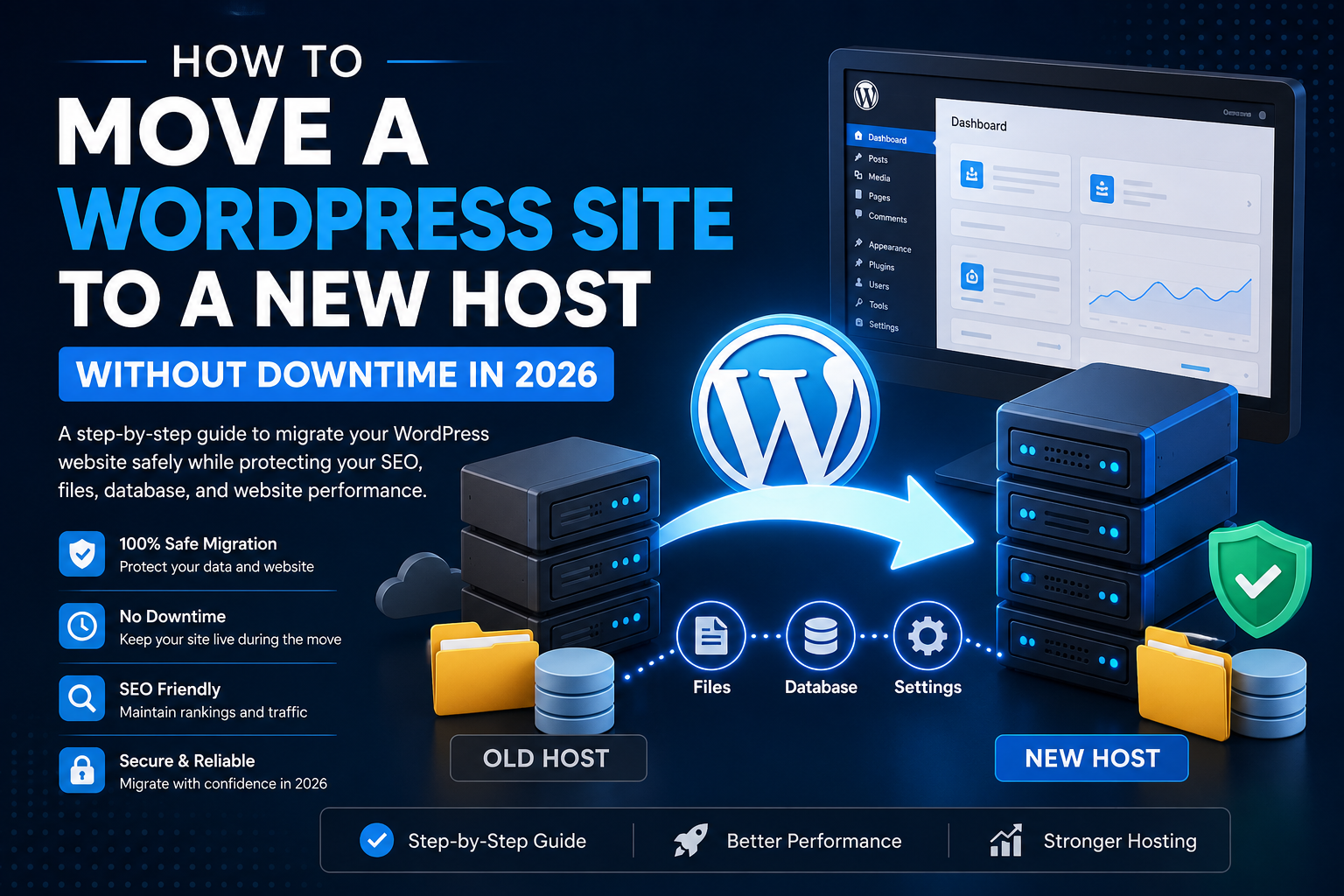
Your WordPress database contains your posts, pages, comments, users, settings, and much more.
Export the database from your current hosting account, then create a new database on your new server before importing the exported data.
During this process, record your new database name, username, password, and server hostname, as you’ll need these details shortly.
Large websites may take several minutes to import, so be patient and wait until the process finishes successfully before moving to the next step.
Update the wp-config.php File
After importing your database, update the wp-config.php file with your new database credentials.
This file connects WordPress to the database, so incorrect settings can prevent your website from loading properly.
Double-check the database name, username, password, and host before saving the file. Even a small typo can generate connection errors.
Test Your Website Before Changing DNS
One of the best ways to avoid downtime is to test your migrated website before directing visitors to the new server.
Many hosting providers allow temporary URLs or preview options that let you inspect the migrated website.
Take time to verify:
- Pages load correctly.
- Images display properly.
- Contact forms work.
- Plugins function normally.
- Internal links aren’t broken.
- SSL certificates are active.
Fixing problems before changing DNS helps ensure visitors experience a seamless transition.
Point Your Domain to the New Host
Once you’ve confirmed everything works correctly, update your domain’s DNS records to point to the new hosting provider.
DNS propagation doesn’t happen instantly. While some users may reach the new server within minutes, others may continue visiting the old server for several hours depending on their internet provider.
Keeping both hosting accounts active during this period helps prevent visitors from seeing downtime while DNS updates spread worldwide.
Verify Everything After the Migration
After DNS propagation is complete, thoroughly inspect your website again.
Visit multiple pages, test forms, review media files, and confirm your SSL certificate is functioning correctly.
Check your analytics platform and search engine webmaster tools for crawl errors after the migration.
If your website uses caching, clear all server, plugin, and browser caches so visitors receive the latest version of your website.
Monitoring your website for the next few days can help identify any hidden issues before they affect users.
Preserve Your SEO During the Move
A properly planned migration should have little or no impact on search engine rankings.
Keep the same URL structure whenever possible and avoid changing page slugs unnecessarily.
Update your XML sitemap if required and submit it to search engines after the migration.
Monitor for crawl errors and fix any broken links that may appear.
If your domain remains the same, most search engines will continue indexing your website without major disruption.
Common Migration Mistakes to Avoid
Many migration problems happen because website owners rush the process.
Some common mistakes include:
- Forgetting to create a backup.
- Deleting the old hosting account too early.
- Changing DNS before testing the new website.
- Using incorrect database credentials.
- Forgetting to install SSL certificates.
- Ignoring broken links after migration.
- Not clearing cached files.
- Updating too many settings at once.
Avoiding these mistakes makes the migration much smoother.
Frequently Asked Questions
Will moving my WordPress site affect SEO?
If performed correctly, a migration should have little or no long-term impact on SEO. Maintaining the same URLs and avoiding downtime helps preserve rankings.
How long does a WordPress migration take?
Small websites can often be migrated within an hour, while larger websites may require several hours depending on their size and complexity.
Can I migrate without downtime?
Yes. By preparing your new hosting account, testing the website first, and changing DNS only after everything is working, downtime can usually be avoided.
Should I cancel my old hosting immediately?
No. Wait until DNS propagation has completed and you’ve confirmed the new website is working correctly before canceling your previous hosting account.
Final Thoughts
Learning how to move WordPress site to new host is an important skill for every website owner. A successful migration depends on careful planning, complete backups, proper testing, and verifying that every part of your website works before changing DNS. By following these best practices in 2026, you can migrate your WordPress website with confidence, minimize downtime, protect your SEO, and provide visitors with a smooth, uninterrupted browsing experience.